
For many businesses and freelancers, invoices arrive as PDFs—whether from clients, vendors, or marketplaces. While PDFs are great for sharing and archiving, they are a nightmare when you need to actually work with the data inside them. Imagine trying to analyze expenses, track payments, or upload invoice data into accounting tools—all from a static PDF. It’s inefficient and time-consuming.
The Problem with PDF Invoices
PDFs are not built for data manipulation. They’re great for looking at, but terrible for extracting rows of invoice data like line items, taxes, subtotals, and vendor information. Most invoice PDFs follow different formats—some have itemized tables, others don’t. Manually entering each invoice into Excel or Google Sheets is slow, error-prone, and frustrating.
You might think tools like QuickBooks or Excel have built-in PDF importers, but in reality, they either don’t support PDFs or require very strict formatting.
The Better Way: Use StatementsPro to Convert PDF Invoices into Excel
That’s where StatementsPro comes in.
Originally designed to convert bank statements, StatementsPro also supports custom format extraction—making it perfect for converting PDF invoices into structured Excel sheets. You upload your invoice in PDF form, tell StatementsPro what data you need, and it outputs a clean, organized Excel sheet. No manual entry, no stress.
Whether you’re a freelancer managing a handful of invoices or a business owner dealing with hundreds each month, this tool can save you hours.
How It Works – Step by Step
Visit StatementsPro.com
Go to the platform and sign in to your dashboard.
Upload Your PDF Invoice
Click on “Upload Document” and select your invoice PDF. You can upload one file or multiple at once.
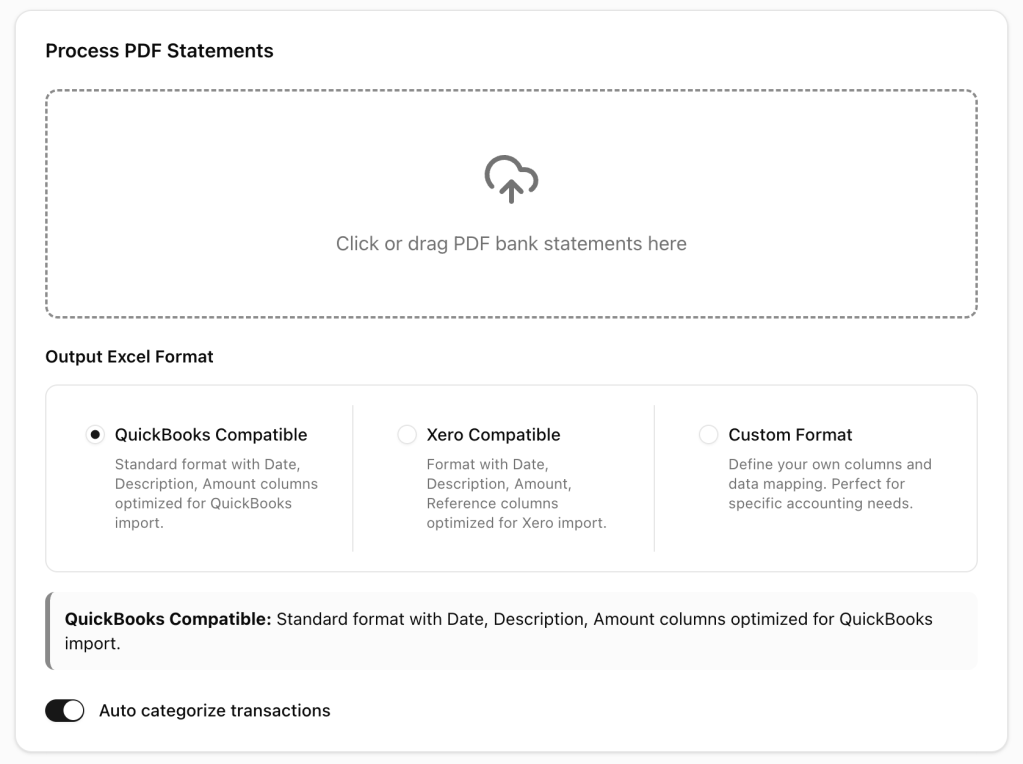
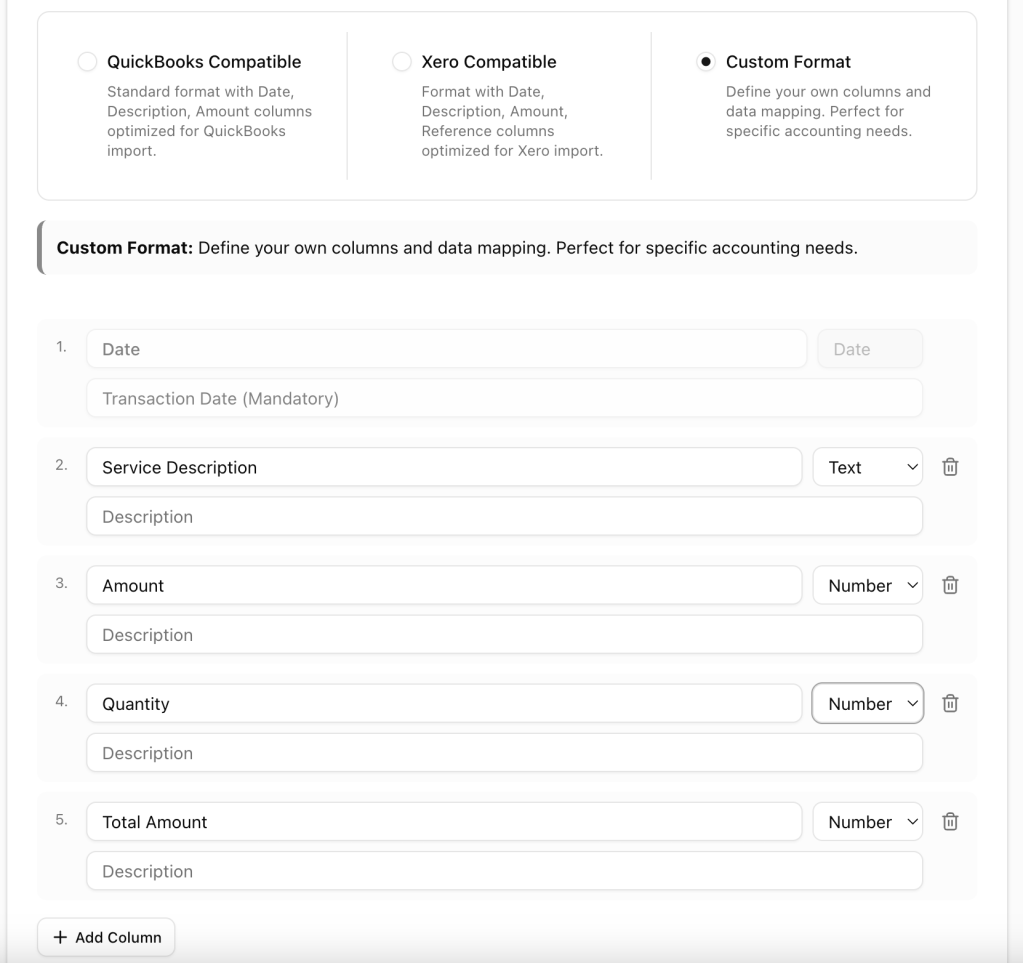
Select “Custom Format Extraction”
After uploading, choose the Custom Format option. This allows you to tell StatementsPro what you want extracted—line items, invoice numbers, dates, totals, tax rates, etc.
Preview the Extracted Data
You’ll see a clean table with all invoice data parsed correctly—no weird formatting or broken columns.
Download as Excel
Click “Export” and download your invoice data as a fully-editable Excel file, ready to use with your accounting software or internal reports.
Bonus: Use with Any Language or Layout
StatementsPro is built to support invoices from any region, bank, or company. Whether your invoice is in English, Japanese, German, or French—StatementsPro handles it smoothly. And you don’t need coding or template knowledge to get started.
Why Use StatementsPro?
- Saves hours of manual entry
- Supports any invoice layout or language
- Clean, structured Excel output
- Custom format option makes it flexible
- Works right in your browser—no software install
Try It Free
If you haven’t tried StatementsPro yet, now’s the perfect time. Upload your first PDF invoice and experience how easy invoice conversion can be. If you’re interested, we also offer a limited free trial of Pro features to help you get started.
 StatementsPro
Leave a comment