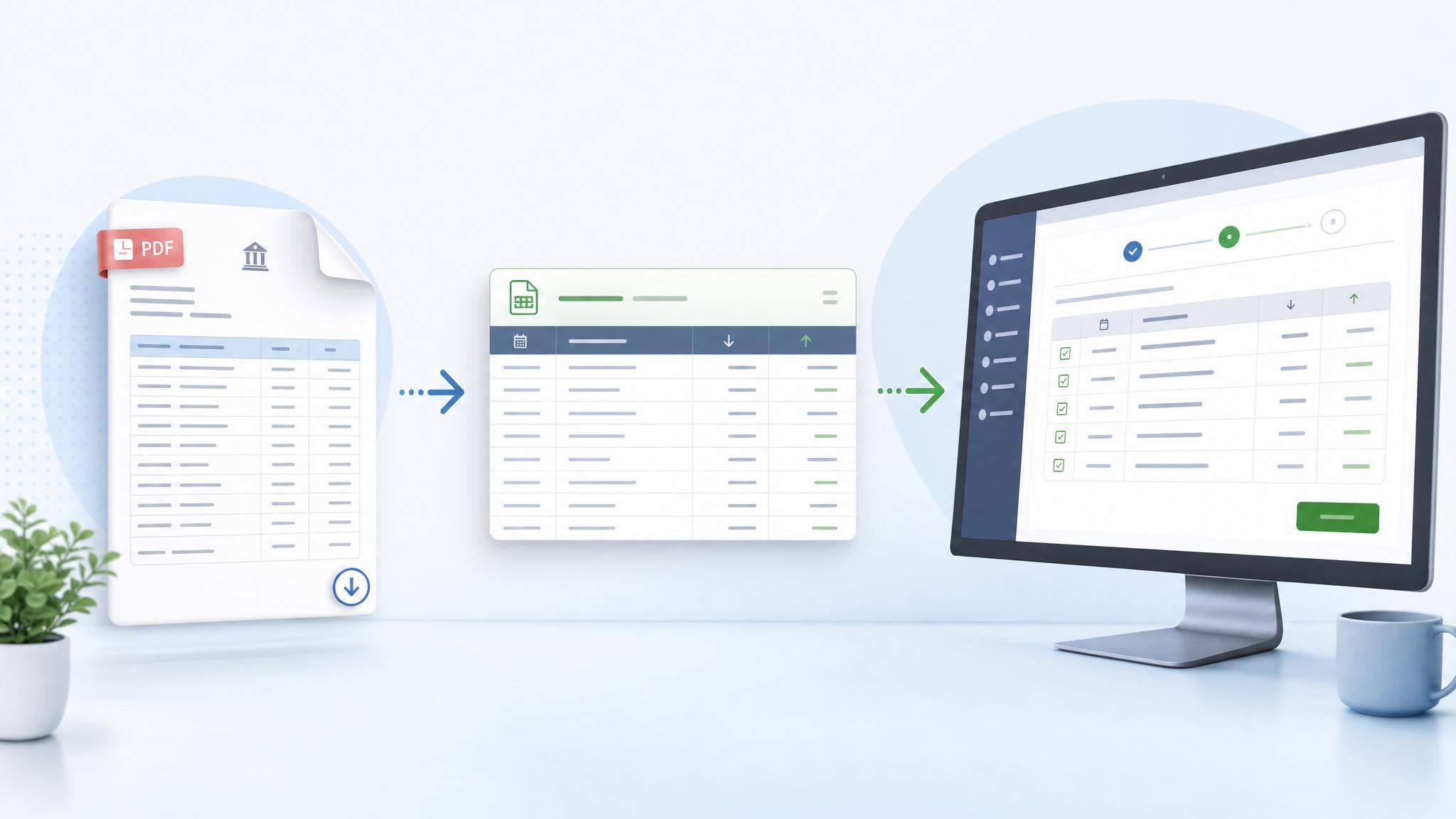

If you have ever tried to upload a PDF bank statement into QuickBooks, you probably discovered the annoying part very quickly: QuickBooks does not treat a PDF like a bank feed.
A PDF is made for humans to read. QuickBooks needs structured transaction data.
That is where a bank statement to QBO workflow comes in. Instead of manually typing dates, descriptions, debits, credits, and balances into QuickBooks, you convert the bank statement into a QuickBooks-ready format and import the transactions in a cleaner way.
In this guide, we’ll explain what QBO means, when you need a QBO file instead of a CSV, how to convert a PDF bank statement for QuickBooks, and how to avoid the most common import errors.
What does “bank statement to QBO” mean?
“Bank statement to QBO” usually means converting a PDF bank statement into a file that QuickBooks can import.
There are two common meanings:
- A real
.qboWeb Connect file, mostly used for QuickBooks Desktop and some QuickBooks workflows. - A QuickBooks-ready CSV or Excel file, commonly used for QuickBooks Online manual uploads.
QuickBooks Online supports manual transaction uploads using CSV files in either a 3-column format — Date, Description, Amount — or a 4-column format — Date, Description, Credit, Debit. Intuit’s own guidance says the CSV must be formatted correctly before upload.
QuickBooks Desktop commonly uses Web Connect .qbo files. Intuit’s Desktop guidance explains that users can import Web Connect files by going to Banking, then Bank Feeds, then importing Web Connect files.
So the best format depends on your QuickBooks version.
QBO vs CSV: which format should you use?
Use QBO if you are working with QuickBooks Desktop or your workflow specifically requires Web Connect files.
Use CSV if you are importing transactions into QuickBooks Online manually and want a simple spreadsheet format.
Here is the simple version:
| Format | Best for | Notes |
|---|---|---|
| QBO | QuickBooks Desktop, Web Connect workflows | More accounting-specific; can include transaction IDs that help with duplicate detection. |
| CSV | QuickBooks Online manual upload | Easier to edit in Excel or Google Sheets before importing. |
| Excel | Review, cleanup, custom templates | Useful before converting into a final import format. |
For many small businesses, freelancers, and bookkeepers, a QuickBooks-ready CSV is enough. But if your client, accountant, or desktop workflow specifically asks for a .qbo file, then you need a converter that can export QBO or prepare data for a QBO workflow.
Why PDFs cannot be imported directly like bank feeds
A bank statement PDF looks structured, but underneath it may not be structured in the way accounting software needs.
A PDF statement can be:
Digital-native: text can be selected, copied, and read by software.
Scanned: the statement is basically an image, so OCR is needed first.
Messy or hybrid: some text is selectable, but tables, stamps, watermarks, or multi-page layouts confuse basic PDF tools.
This is why copying and pasting from a PDF often creates problems:
- Dates move into the wrong column.
- Descriptions split across multiple rows.
- Debit and credit columns get mixed.
- Running balances are mistaken for transaction amounts.
- Multi-page statements create duplicate headers.
- Scanned statements return unreadable text.
A good bank statement converter should not just extract text. It should identify transaction rows, separate columns, and preserve the structure needed for accounting.
How to convert a PDF bank statement to QBO or QuickBooks-ready CSV
Here is the clean workflow.
Step 1: Check what QuickBooks format you need
Before converting anything, confirm your destination.
For QuickBooks Online, you can usually upload a properly formatted CSV. Intuit says CSV files can use a 3-column format with Date, Description, and Amount, or a 4-column format with Date, Description, Credit, and Debit.
For QuickBooks Desktop, you will usually want a .qbo Web Connect file. Intuit’s Desktop instructions show Web Connect files being imported through Bank Feeds.
This matters because a random Excel file is not automatically QuickBooks-ready. The columns, dates, debit/credit signs, and transaction order all need to match what QuickBooks expects.
Step 2: Upload the PDF bank statement to a converter
Use a bank statement converter designed for financial documents, not a generic PDF table extractor.
StatementsPro is built for this exact workflow: upload a PDF bank statement, extract transactions, and turn them into structured Excel or accounting-ready files. The public StatementsPro homepage describes the tool as converting PDF bank statements into categorized Excel sheets ready for QuickBooks, Xero, or custom templates, with free pages available to start.
A good converter should extract:
- Transaction date
- Description or payee
- Debit amount
- Credit amount
- Signed amount
- Balance, when available
- Page/source reference, when possible
The goal is not just to “read the PDF.” The goal is to create clean accounting data.
Step 3: Review the extracted transactions
Do not skip this step.
Even strong converters should be reviewed before importing into QuickBooks. Bank statements contain sensitive financial data, and small mistakes can become annoying later during reconciliation.
Check:
- Are all pages included?
- Are opening and closing balances consistent?
- Are debits and credits in the correct direction?
- Did the converter remove duplicate page headers?
- Are dates in one consistent format?
- Are descriptions readable?
- Are there any missing transactions?
If your statement has a running balance column, use it as a quick accuracy check. If the extracted transactions do not line up with the statement balance, fix the issue before importing.
Step 4: Export in the right format
Export based on your QuickBooks workflow.
For QuickBooks Online, choose a CSV or Excel layout that can be mapped into QuickBooks.
For QuickBooks Desktop, use QBO/Web Connect export if your tool supports it. A QBO file is closer to the format banks provide when users download Web Connect transactions from their bank portal.
If you are not sure which one to choose, start with QuickBooks-ready CSV for Online and QBO for Desktop.
Step 5: Import into QuickBooks
For QuickBooks Online, go to the banking or transactions upload area and import the CSV file. During import, QuickBooks will ask you to map columns such as date, description, and amount.
For QuickBooks Desktop, import the Web Connect file through Bank Feeds. Intuit’s official Desktop workflow says to select the .qbo file, choose or create the matching bank account, continue, and then review the transactions in the Bank Feeds Center.
Step 6: Categorize and reconcile
After import, do not assume the books are finished.
Imported transactions still need to be:
- Matched to existing entries
- Categorized to the right expense or income accounts
- Checked for duplicates
- Reconciled against the original monthly statement
The IRS also emphasizes the importance of keeping good records to monitor business progress, prepare financial statements, identify income sources, track deductible expenses, prepare tax returns, and support items reported on tax returns.
That is why clean bank statement conversion matters. It is not just about saving time. It helps create a better bookkeeping record.
Common bank statement to QBO conversion mistakes
Mistake 1: Using a generic PDF to Excel converter
Generic PDF converters are fine for simple tables, but bank statements are more complicated.
They often fail when:
- Descriptions wrap into two lines.
- Statements include separate debit and credit columns.
- The same PDF has multiple account sections.
- The statement is scanned.
- Transactions continue across pages.
A bank statement converter is different because it is built to understand financial transaction layouts.
Mistake 2: Importing the wrong account type
Credit card statements can behave differently from bank statements. In some cases, payments may appear as negative amounts, and the transaction direction can look reversed.
Intuit notes that CSV files for credit card accounts may display transactions in reverse order or with signs that need to be interpreted correctly, so users should make sure they select the correct credit card account when uploading.
Mistake 3: Mixing date formats
Date formatting is one of the easiest ways to break an import.
For example:
- 01/02/2026 could mean January 2 or February 1.
- Some bank exports include weekdays in the date column.
- Some international statements use day-month-year formatting.
- Japanese, European, and US statements may all differ.
Before importing, make sure every date uses one consistent format.
Mistake 4: Keeping zeroes instead of blank debit/credit cells
QuickBooks can be picky about CSV structure. Intuit’s CSV formatting guidance says that if an upload error appears, users may need to remove zeroes and leave those cells blank instead.
This is a small detail, but it can save a lot of frustration.
Mistake 5: Not checking for duplicates
Duplicate transactions can happen if:
- You import overlapping statement periods.
- You upload both a bank feed and a converted statement.
- You import the same statement twice.
- Your converter does not preserve unique transaction IDs.
Before importing, check the date range and compare it with what is already in QuickBooks.
Why accountants and bookkeepers use bank statement converters
Manual data entry is slow, expensive, and easy to mess up.
If a client sends 12 months of PDF bank statements, typing every transaction manually can take hours. For bookkeepers, that means lower margins. For business owners, it means delayed books, late reports, and more stress during tax season.
A bank statement converter helps by turning the PDF into structured data.
That means you can:
- Process old statements faster.
- Rebuild books when bank feeds are missing.
- Handle clients who refuse to connect bank accounts.
- Import historical transactions.
- Review data in Excel before QuickBooks.
- Reduce manual typing errors.
- Prepare cleaner files for reconciliation.
This is especially useful when a bank portal only provides PDF statements, when transactions are older than the bank feed range, or when you are cleaning up months of bookkeeping backlog.
When should you use StatementsPro?
Use StatementsPro when you have a PDF bank statement and need structured transaction data quickly.
It is especially useful if:
- Your bank only gives you PDFs.
- Your client sends statements as PDF attachments.
- You need a QuickBooks-ready spreadsheet.
- You want to review transactions before upload.
- You are converting multiple months of statements.
- You want to avoid manual data entry.
- You need a free starting option before committing to a paid tool.
StatementsPro’s public site says it extracts transactions from PDF bank statements and turns them into categorized Excel sheets ready for QuickBooks, Xero, or custom templates. It also says users can start with free pages and no credit card requirement.
Bank statement to QBO checklist
Before you upload your converted file into QuickBooks, run through this checklist:
- The statement date range is correct.
- Every page was processed.
- Transaction dates are consistent.
- Descriptions are readable.
- Debits and credits are in the right columns.
- Amount signs are correct.
- No duplicate page headers are included.
- Opening and closing balances make sense.
- The export format matches your QuickBooks version.
- You saved the original PDF for audit/reference.
This checklist takes a few minutes, but it can prevent messy cleanup later.
Final thoughts
Converting a bank statement to QBO is really about turning a human-readable PDF into accounting-ready transaction data.
For QuickBooks Online, that may mean a properly formatted CSV. For QuickBooks Desktop, that may mean a .qbo Web Connect file. Either way, the important part is accuracy: clean dates, clear descriptions, correct debit/credit direction, and no missing transactions.
If you are tired of manually entering bank statement data, use a purpose-built converter like StatementsPro to extract the transactions and prepare a QuickBooks-ready file faster.
Upload your PDF bank statement, review the extracted data, export it in the right format, and import it into QuickBooks with far less manual work.
FAQ
Can I upload a PDF bank statement directly into QuickBooks?
Usually, no. QuickBooks needs structured transaction data, not just a PDF document. For QuickBooks Online, you can usually use a properly formatted CSV. For QuickBooks Desktop, Web Connect .qbo files are commonly used.
What is a QBO file?
A QBO file is a QuickBooks Web Connect file used to import bank transactions into QuickBooks. It is different from a normal PDF or Excel file because it is structured for accounting software.
Is CSV or QBO better for QuickBooks?
For QuickBooks Online, CSV is often easier and widely used for manual uploads. For QuickBooks Desktop, QBO/Web Connect is usually the better fit.
Can I convert a scanned bank statement to QuickBooks?
Yes, but you need a converter with OCR. Scanned PDFs are images, so the tool must recognize the text before extracting transactions.
What columns does QuickBooks Online need?
QuickBooks Online can use a 3-column CSV with Date, Description, and Amount, or a 4-column CSV with Date, Description, Credit, and Debit.
Is a bank statement converter safe?
Choose a converter with clear privacy policies, secure file handling, and transparent terms. Since bank statements contain sensitive financial information, avoid random free tools with unclear data practices.
Can I use StatementsPro as a DocuClipper alternative?
Yes, if your main need is converting PDF bank statements into structured Excel or QuickBooks-ready files. StatementsPro is especially useful for users who want a simpler workflow and a free starting option.
Leave a Reply